Two exciting new features have just landed in ASK BOSCO® AI Analyst, allowing you to personalize it to your exact requirements.
AI Analyst (your very own 24/7 data analyst within the ASK BOSCO® Shopify app and web platform) can now be configured per team, client or use case, and remembers your role and preferences. Our first new feature, ‘Analysts’ lets you build a specific AI Analyst around your organization. And ‘Personal memory’ shapes it around you.
Here’s how these two new features work, in a nutshell:
- ‘Analysts’ lets you build a version of AI Analyst for a specific team, client or use case. You give it a name, write instructions telling it how to answer, pick up to five data models it’s allowed to see, and share it with whoever needs it. Anyone who opens that Analyst starts inside the right scope, with the right definitions already applied.
- ‘Personal Memory’ lets you teach AI Analyst about yourself. Tell it your role, your region, your preferred data sources or how you like answers formatted, and it applies that automatically in every session from then on. No re-explaining at the start of every conversation.
Feature #1 ‘Analysts’
‘Analyst’ is, essentially, a tailored version of AI Analyst, configured once and ready to go. It’s the same AI Analyst experience you’re already familiar with in the ASK BOSCO® platform, just with some guardrails already in place, so anyone using it starts in the right place, with the right scope.
Here’s what you control when you build your own Analyst:
- A name and icon: So people can tell your Paid Media Analyst from your Retail Client Analyst at a glance.
- Custom instructions: You can use up to 5,000 characters to define your tone, apply definitions, tell it what to exclude, and how to handle ambiguous questions. These override the default behaviour, so every person using that Analyst gets consistent answers.
- Scoped data access: You can pick up to five data models for your Analyst to use. Users inside that Analyst can only query those models. They never have to choose a data source, and they can’t accidentally pull from data outside the scope.
- Connector control: You decide which MCP connectors the Analyst can use, and you can block the ones that aren’t relevant.
- Share an Analyst with individuals or groups: You can chat with it or copy it, and once shared, users are automatically granted view access to the data models it uses. Only the creator, an admin, or a user with the right privilege can edit it.
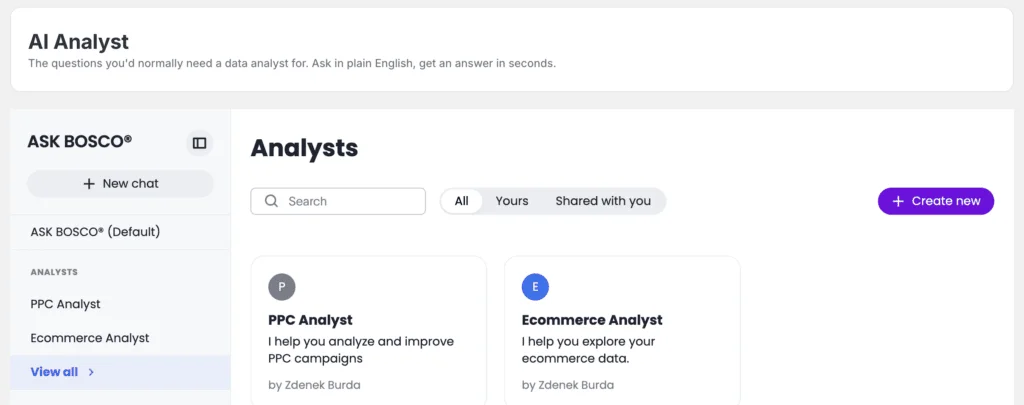
Analysts live in a new ANALYSTS section in the AI Analyst sidebar. Click View all, then Create new. Then edit them as things change, copy them to make variations, delete them when they’ve served their purpose.
Tip: you can use AI Analyst itself to help write your instructions. Describe the use case, audience and behaviour you want in plain English, review what it gives you, then paste it into the Analyst setup.
Feature #2: Personal Memory
Personal Memory is what AI Analyst knows about you specifically: your role, your context, your preferences. It applies only to your sessions and changes nothing for anyone else.
NB: AI Analyst only remembers what you explicitly tell it to remember. There’s no silent profiling in the background.
There are two layers:
- Your profile. Who you are and how you like to work, applied in every session regardless of which data model you’re querying. “I’m Head of CS for EMEA, focused on renewals.” Every answer from that point on is framed through that lens.
- Data model-specific context. Preferences and definitions that apply only when you’re querying a particular model. You can, for example, define “performance” one way on a sales model and another way on a customer success model. AI Analyst applies the right one, as defined by you.
Here are some ideas for things you might tell AI Analyst:
- “Always show me tables, not charts.”
- “When I ask about revenue, use Shopify. For sessions, use GA4.”
- “When I say my accounts, filter to my EMEA book.”
- “Keep answers short. Skip the preamble.”
You can manage all of this in a simple conversation with AI Analyst. Ak “What do you know about me?” for a summary at an point, then make corrections, for example, “My region is now DACH, not EMEA.” You can remove personal memory with a simple sentence such as “Forget that my region is EMEA.”
If you work across multiple organizations, which is common for agencies, Personal Memory is set per organization. That’s often useful, because you can keep different data preferences and definitions for each client. Ask “What do you know about me?” in an organization you’ve already configured gives you a summary you can copy across in a minute.
Here’s how both features work within the AI Analyst feature in ASK BOSCO:
| Analysts | Personal Memory | |
| Scope | A team, client or use case | You, individually |
| Set by | The Analyst’s creator | You |
| Affects | Everyone who uses that Analyst | Only your sessions |
| Controls | Data models, instructions, connectors, sharing | Your role, preferences, personal definitions |
Frequently asked questions about personalizing AI Analyst:
Do I need technical skills to set up an Analyst? No. You simply write the instructions in plain English and pick your data models. No coding required.
How can the new Analyst feature in ASK BOSCO® help me?
- Paid media teams. Scope an Analyst to Google Ads and Meta Ads. Ask about ROAS, CPM and CTR in your own terminology, and define in the instructions exactly what “underperforming” means for your accounts.
- SEO teams. Point one at Google Search Console and GA4. Rankings, impressions and traffic questions get answered without anyone picking the right data model first.
- Ecommerce and trading teams. A Shopify-scoped Analyst lets trading managers interrogate sales, product trends and basket behaviour without navigating the full data estate. Instructions can strip out test data so it never lands in an answer.
- Agency account teams. Build a client-specific Analyst for each account, configured with that client’s KPIs and terminology. This means that you’ll get consistent, on-brief answers fast, without holding fifteen clients’ definitions in your head.
How can the new ‘Personal Memory feature in ASK BOSCO® help me?
- Ecommerce & trading managers: Save data source preferences once – for example, “when I ask about revenue, always use Shopify” or “for sessions, use GA4” – so AI Analyst draws from the right source without needing to be told each time
- SEO managers:
- Define once that organic performance questions should use Google Search Console rather than GA4, so answers are always drawn from the preferred source
- Save role context – for example, “I focus on non-brand organic performance” – so AI Analyst frames answers around the metrics that matter most to them
- Senior stakeholders & executives:
- Save role and focus area once – for example, “I’m the CMO, focused on brand and acquisition” – and receive answers framed at the right level without re-explaining each session
- Prefer concise answers without preamble? Save that preference once and AI Analyst applies it automatically
Can other people see what I’ve saved in Personal Memory? No. Personal Memory is yours alone. It doesn’t affect anyone else’s answers, and admins can’t view individual users’ saved context.
Can users see the instructions an Analyst was built with? No, they can’t see the instructions you used directly, but they can ask the Analyst to describe its scope.
What happens if I don’t select an Analyst? If you don’t select an Analyst, your chats default to the standard ASK BOSCO® AI Analyst experience. You’ll need to clicking on an Analyst to start a new chat scoped to it.
Do I have to keep setting up Personal Memory? No, you only need to set it up once per organization. After that it applies automatically in every session.
Got questions for our team?
Simply get in touch with our team at team@askbosco.io – we’d love to help!