TLDR: ASK BOSCO® lets you group related visualizations and notes to create cleaner, more structured dashboards. You can also fully customize the look of your dashboards using the new Styling Panel, including theme colours, corner styles, and visibility options for titles and descriptions. Groups and individual tiles can be moved, resized, and styled independently for complete layout control.
Customize your dashboards with new features
We’re excited to introduce two powerful enhancements to ASK BOSCO® Reporting dashboards: Grouping and Styling. These features give you far more control over how your reporting is presented, making dashboards easier to navigate, easier to interpret, and far more visually polished.
Whether you’re building a quick report or an executive-level insight hub, these help you structure your data your way.
Dashboard grouping: Group related insights for clearer visualization
The new Dashboard Grouping feature lets you organise multiple Visualizations and Notes into neat, logical sections. Instead of a long, sprawling layout, you can now cluster related insights together, making dashboards much easier for you and your team to read and understand.
Create a Group in just a few clicks
- Open the Dashboard you want to edit.
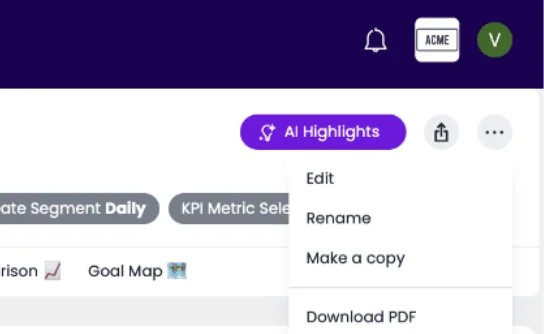
- Go to More (top right) → Edit
- If this is greyed out, you may need edit permissions from your admin or dashboard creator.
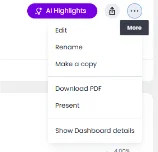
- Hold Shift and click to select the Visualizations and Notes you want to group.
- When selected, a toolbar will appear on the last tile, and then click Group.
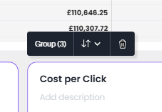
- Add a Title and Description to contextualise the group.
Here’s an ASK BOSCO dashboard before our new grouping feature:
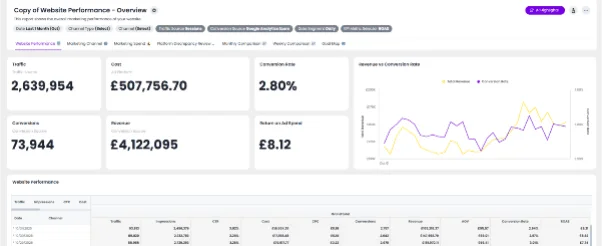
And after:
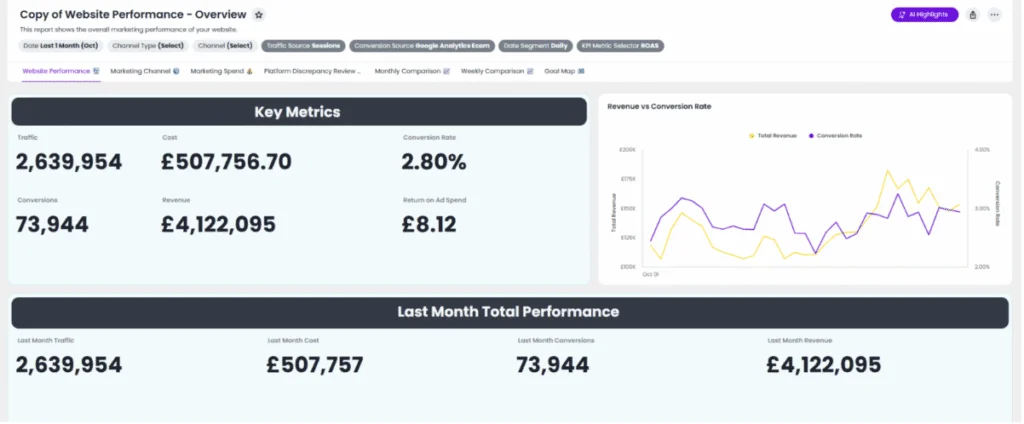
Your dashboard now has a clear, structured section to help you quickly understand what you’re looking at.
Fine-tune your Groups
Once your group is created, you can move it or change it how you wish, including…
- Add items to a group: select a tile → Move icon → Move to Group
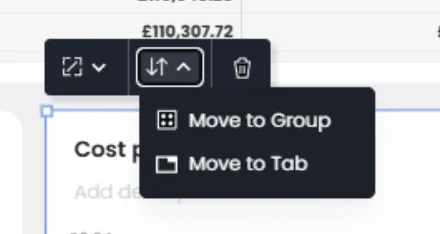
- Remove items: select a tile → Move icon → Move out of Group
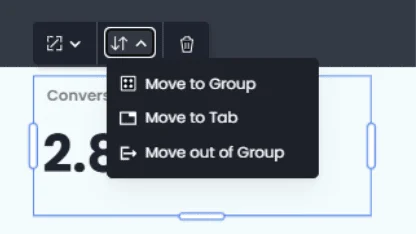
- Resize groups: stretch them horizontally or vertically, contents adapt automatically
- Move groups: place them anywhere, even across tabs
Groups are flexible, dynamic, and designed for fast dashboard layout management.
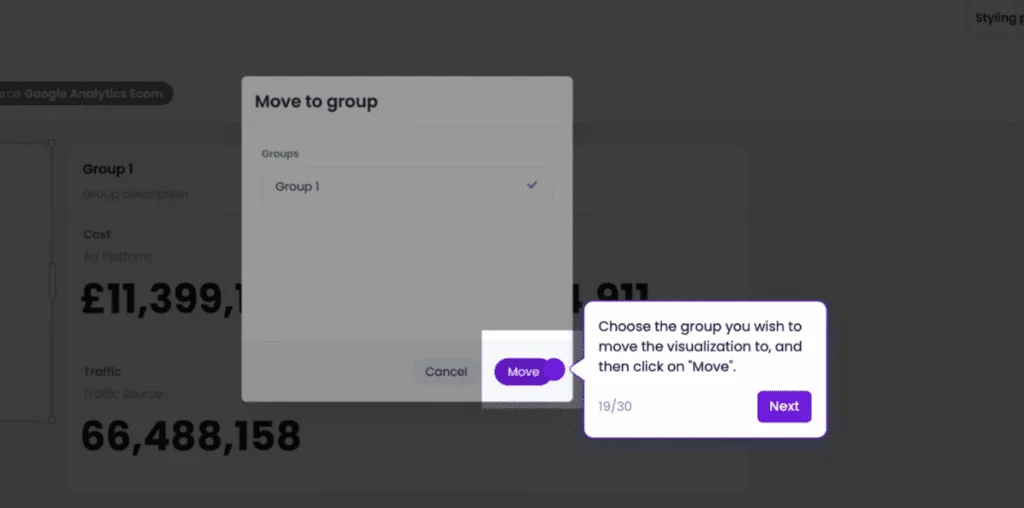
New Styling panel: Make dashboards look the way you want
Alongside grouping, we’ve introduced a completely new Styling Panel, for improving your dashboard aesthetics and making your data easier to understand.
To access it:
- Open the dashboard → More → Edit
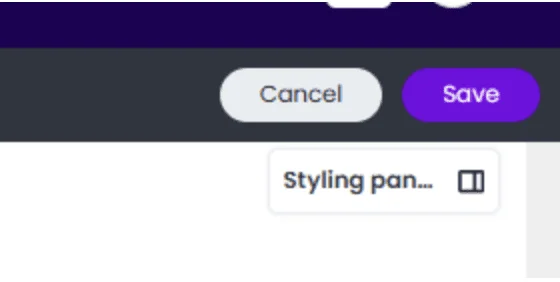
- The Styling Panel appears, click to open it
Now you can customize:
Dashboard theme colours
Choose from a set of pre-configured colours. Your selection automatically applies to:
- Dashboard background
- Group backgrounds
- Visualization and Note tiles
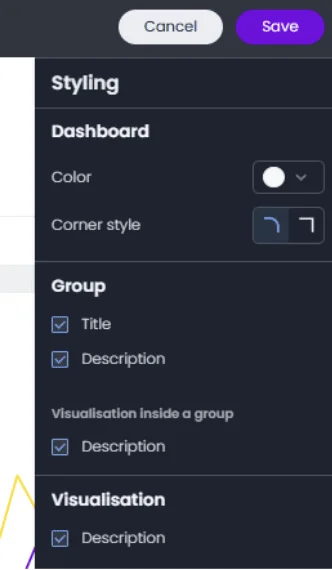
Corner styling
Prefer a modern curved look or sharp, clean edges? Toggle between curved or straight borders for every element in your report.
Display controls
Turn visual clutter on or off with description toggles:
- Show/hide all group titles and descriptions
- Hide descriptions for Visualizations inside groups
- Hide descriptions for Visualizations outside groups
Individual tile styling
Click any single Note or Visualization to customize its appearance independently using panel options specific to that item.
Together, these styling tools give you the freedom to create dashboards that match your brand, highlight key insights, and bring a professional polish to every report.
See it in action
Experience the new Grouping & Styling features in our interactive demo: https://askbosco.storylane.io/share/3hvmtadjjezr
Explore how easy it is to build beautiful, intuitive ASK BOSCO® reporting dashboards. With powerful grouping and streamlined styling controls, ASK BOSCO® now makes it easier than ever to organize insights, highlight what matters, and create reports that make an impact.